How to Check Peugeot 208 Warning Lights and Displays
Use the Peugeot 208 manual test, trip computer, dimmer and touchscreen menus, plus the e-208 Energy menu and MYPEUGEOT APP remote functions.
Your 208's dashboard and touchscreen can tell you far more than most owners ever look at: trip data, fuel or energy use, the remaining range and, on the e-208, how energy is flowing between the battery and the motor. This guide shows you how to find and use all of it.
We cover the instrument panel test, odometer and trip computer, the lighting dimmer and the touchscreen menus (5-, 7- and 10-inch versions), plus the e-208's Energy menu and remote functions. It's based on the second-generation 208 and e-208 (2019 on) and the official Peugeot 208 owner's handbook.
Manual Test
In earlier articles we explained what many of the 208's indicators mean. If a warning lamp is lit on your car, be sure to check our guides to Peugeot 208 orange warnings, Peugeot 208 red warnings and Peugeot 208 green and blue indicators, as well as what the 208's service and gauge indicators mean.
The manual test lets you check some of your 208's indicators and view the list of active alerts. You run it from the "Check" button in the Vehicle touchscreen menu. During the test, the instrument panel shows:
- Engine oil level.
- Next service due.
- Tyre pressures.
- Driving range related to AdBlue® and the SCR system (BlueHDi diesel).
- Active alerts.
This information is also shown automatically every time you switch on the ignition. It's a quick way to check your car's current status, so you'll notice any problem straight away.
Odometer
The odometer measures the total distance your 208 has covered since it was first registered. It is shown continuously while the ignition is on and stays on screen for 30 seconds after you switch the ignition off. It also appears when the driver's door is opened and when the car is locked or unlocked.
When travelling abroad, you may need to switch the distance units (km or miles) to match the official units of the country you're in (km/h or mph). With the car stationary, you can change the units in the screen's configuration menu.
Interpret the Peugeot 208 Odometer Reading
The odometer tells you a lot about the car's use and general condition. The reading matters when buying or selling a car, for timing services and for understanding how the car has been used, and it helps you plan its maintenance. Switching units when driving abroad helps you keep in line with local roads and speed limits.
Lighting Dimmer
The lighting dimmer lets you manually adjust the brightness of the instruments and controls to suit the ambient light. It is designed to reduce eye strain and improve comfort, especially when driving at night.
Use the Lighting Dimmer on a Peugeot 208
With the BLUETOOTH audio system with touchscreen:
Press the "Settings" menu.
Select "Display".
Adjust the brightness using the buttons.
You can turn the screen off by selecting "Turn off screen". The screen goes completely dark; press it again to switch it back on.
With PEUGEOT Connect Radio:
Press the button to open the Settings menu.
Select "Brightness".
Adjust the brightness with the arrows or by moving the slider. Settings apply immediately.
You can turn the screen off by selecting "Dark". The screen goes completely dark; press it again to switch it back on.
With PEUGEOT Connect Nav:
With the lights on, open the Settings menu.
Select "OPTIONS", then "Screen settings".
Select the "Brightness" tab.
Adjust the instrument panel and screen brightness with the arrows or the slider.
Press the buttons above to save and exit.
You can turn the screen off by selecting "Turn off screen". The screen goes completely dark; press it again to switch it back on.
Adjusting the screen brightness to the driving conditions improves visual comfort and supports safe driving.
Trip Computer
The trip computer shows key information about your current journey, so you can follow the car's performance and your trip data in real time. It includes the range (how far you can drive), fuel consumption, average speed and similar data, which helps you judge the car's efficiency and fine-tune your driving habits.
Use the Peugeot 208 Trip Computer
- Range: shows how far you can drive on the fuel currently in the tank, which is essential when planning long journeys.
- Fuel consumption: shows current or average fuel consumption, helping you understand efficiency and adjust your driving style if needed.
- Average speed: shows your average speed over the journey, useful for managing time on long trips.
You can access the trip computer easily through the controls for the instrument panel or the multimedia screen.
Data Shown on the Instrument Panel
Use the Data Shown on the Peugeot 208 Instrument Panel
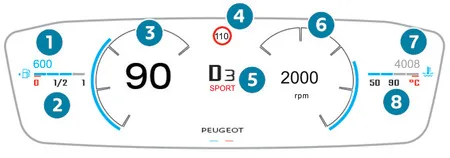
The 208's instrument panel displays the trip computer data and gives you useful journey information. How it's shown differs between dial and digital instrument panels.
Dial instrument panels:
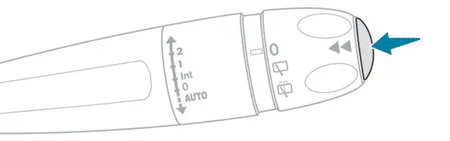
- Trip computer data: press the end of the wiper control stalk to display the trip computer data and quickly reach current and journey information.
Digital instrument panel:
- Personal display mode: when this mode is selected, the trip computer data is displayed permanently.
- Other display modes: press the end of the wiper control stalk and the data appears automatically in a dedicated window.
Displaying the Different Tabs
Press the button on the end of the wiper control stalk to cycle through the following tabs:
- Current information:
- Driving range (petrol or diesel).
- Current fuel consumption.
- Stop & Start time counter (petrol or diesel).
- Trip "1" and "2":
- Average speed.
- Average fuel consumption.
- Distance travelled.
Current consumption and range help you monitor fuel efficiency and plan your journey, while average speed and distance travelled give you an idea of your overall driving habits.
Resetting the Trip Counter
Resetting the trip counter lets you track your driving data for a specific journey or period, which is useful when starting a new trip or when you want to track particular data separately.
Reset the Trip Counter
- Display the trip: first display the trip you want (trip "1" or "2") by pressing the button on the wiper control stalk.
- Reset it: once the trip is displayed, press and hold the button on the end of the wiper stalk for more than 2 seconds.
Using Trips "1" and "2"
- Trips "1" and "2" work independently of each other.
- You can use them for different purposes, for example trip "1" for daily driving and trip "2" for long journeys.
- This lets you track fuel consumption, average speed and distance travelled separately for different journeys or periods.
Peugeot 208 Instrument Panel Definitions
The 208's instrument panel shows a range of data. Here's what each value means and how it's calculated.
Range (km or miles)
This shows the distance you can still drive on the fuel in the tank, or on the traction battery charge for electric versions. It is calculated from the average consumption over the last few kilometres (or miles) driven.
Variability: the figure can change with your driving style or road conditions. When the range drops below 30 km (19 miles), dashes appear on the instrument panel.
Refuelling: after adding at least 5 litres of fuel, the range is recalculated and shown once it exceeds 100 km (62 miles).
Fault: if dashes are shown instead of figures while driving, there is a fault and you should contact a PEUGEOT dealer or qualified workshop.
Current Consumption (mpg, l/100 km, km/l or electric units)
The instantaneous fuel or energy consumption, calculated over the last few seconds.
Display: this function is shown at speeds above 30 km/h (19 mph).
Average Consumption (mpg, l/100 km, km/l or electric units)
The average fuel or energy consumption since the trip computer was last reset.
Average Speed (km/h or mph)
The average speed since the trip computer was last reset.
Distance Travelled (km or miles)
The total distance travelled since the trip computer was last reset.
Stop & Start Time Counter (minutes/seconds or hours/minutes)

If your car has Stop & Start, this counter adds up the total time spent in STOP mode during the journey.
Reset: the counter resets automatically every time you switch on the ignition.
5-Inch Touchscreen
Using the Peugeot 208 5-Inch Touchscreen
The 208's 5-inch touchscreen makes it easy to interact with the car and reach its various functions and settings quickly.
What You Can Do on the Touchscreen
Audio and telephone controls: gives access to the audio system and phone functions, making it easy to manage media and calls.
Vehicle function and equipment settings menus: lets you customise the car's features and settings.
Air conditioning controls: depending on version, used to control the air conditioning so you can adjust cabin temperature and air flow.
Safety and Usage Advice
Safety: for safety reasons, stop the car before carrying out any operation that needs sustained attention. Some functions are not available while driving.
Usage tips:
- Don't use sharp objects on the touchscreen.
- Don't touch the touchscreen with wet hands.
- Clean the screen with a soft, clean cloth.
Using the Peugeot 208 Main Controls
The 208 has a set of main controls that give quick access to functions from the audio system to air flow settings. Here's how they work:
Switching the System On with the Ignition Off
Ignition off: with the ignition off, this control switches the system on.
Mute Mode with the Engine Running
- Mute: with the engine running, the same control mutes the sound.
Left Knob: Volume and Media Menu Access
- Volume (turn): turn the left knob to adjust the volume.
- Direct access to the Media menu (press): press the same knob for quick access to the Media menu.
Right Knob: Air Flow and Climate Menu Access
- Air flow (turn): turn the right knob to adjust the cabin air flow.
- Direct access to the Climate menu (press): press the knob to go straight to the Climate menu.
Menu Access and Screen Control
Menu access: use this control to reach the various menus.
- Back to the previous screen or confirm: use this control to return to the previous screen or confirm a selection.
- Automatic return: if the second page is open and nothing is touched for a while, the system returns to the first page automatically.
Peugeot 208 Menus and How to Use Them
The 208's touchscreen menus give you access to the car's functions and let you personalise your driving experience. Here are the menus and their basic uses:
1. Radio
Use: a core part of the infotainment system, the Radio menu lets you browse, store and select radio stations.
2. Media
Use: gives access to music and media via USB, Bluetooth and other connections, making it easy to control media playback.
3. Climate
Use: controls air conditioning settings such as temperature and air flow. Manual air conditioning settings and options are found here.
More information: see the relevant section of the handbook for details on the manual air conditioning settings.
4. Telephone
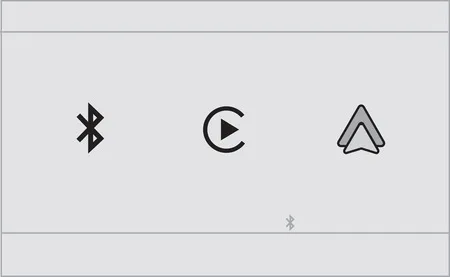
Use: connect your mobile devices via Bluetooth or other methods and use the phone functions.
5. Driving

Use: activate, deactivate and adjust vehicle functions such as parking assistance and cruise control.
6. Settings

Use: manage the main system settings, including language, display and volume levels.
7-Inch or 10-Inch Touchscreen
The 208's 7-inch or 10-inch touchscreen is a more advanced interface that gives access to many of the car's key functions. Here's what you can reach from it:
Permanently Displayed Information
Time and outside temperature:
The time and outside temperature are always shown. If there is a risk of ice, a blue warning lamp lets you know.
Functions and Controls
Heating/air conditioning controls:
Control the cabin temperature settings.
Vehicle Function and Equipment Settings Menus
Gives access to vehicle settings and features.
Audio and Telephone Controls
Gives access to media playback and phone functions.
Visual Manoeuvring Aids
Displays visual parking sensor information and manoeuvring aids such as Park Assist.
Internet Services
Gives access to the car's connected features and related information.
Navigation System
Controls and displays navigation information (depending on version).
Safety and Usage Advice
Safety warning: for safety reasons, always stop the car before carrying out operations that need sustained attention. Some functions are not available while driving.
Tips for Using the Peugeot 208 Touchscreen
The 208's touchscreen uses capacitive technology for precise, easy operation. To keep it working properly and make it last, follow these tips:
Using the Touchscreen
Avoid sharp objects: the surface is delicate, so don't touch it with anything that could scratch or damage it.
Don't touch it with wet hands: moisture can temporarily affect how the screen detects touches and lead to wrong commands.
Clean it with a soft cloth: the screen scratches easily, so use a soft, clean cloth and avoid liquid or abrasive cleaning products.
Main Controls and the All-in-One System
The 208's all-in-one system makes it easy to control the car's main functions, including the audio system, air conditioning and menu access. Here are its main features:
Audio System Controls
Audio system on/off:
Switches the audio system on and off.
Volume/mute:
Adjusts the volume and mutes the sound. See the "Audio equipment and telematics" section of the handbook for details.
Accessing the Scrolling Menu
Press the button beside the touchscreen to open the scrolling menu, then press the virtual buttons on the screen to reach the various functions.
Accessing the Air Conditioning Settings
Air conditioning control:
Press the button below the touchscreen to reach the air conditioning settings.
Instrument Panels and Touchscreen Use
7-inch touchscreen:
Use the buttons around the touchscreen to reach the menus, then press the virtual buttons on the screen.
10-inch touchscreen:
Use the buttons below the touchscreen to reach the menus, then press the virtual buttons on the screen.
Peugeot 208 Touchscreen Menu Principles
The 208's touchscreen menu is built on a few simple principles for controlling and configuring the car's functions:
Multi-Page Menus
Reaching the second page:
Some menus have two pages. Press "OPTIONS" to reach the second page.
Automatic return:
If nothing is done on the second page, the system goes back to the first page automatically.
Function controls
Deactivating/activating a function:
Use the "OFF" or "ON" buttons to switch a function off or on.
Configuring a function:
Use the relevant options and settings to configure the function.
More information:
Press the relevant option for more information about the function.
Confirm and go back:
Use these controls to confirm a selection or return to the previous page.
Peugeot 208 Touchscreen Menus
The 208's touchscreen offers a wide range of menus for controlling and configuring the car's features. Here they are with their general functions:
Accessing the Menus
Displaying the menus: press the touchscreen with three fingers to show all the menu buttons. See the audio and telematics sections of the handbook for more about each menu.
Main Menus
Radio/Media:
Controls and settings for the audio system and media playback.
Climate:
Cabin temperature and air flow settings. See the relevant handbook section for details on manual and automatic air conditioning.
Navigation (depending on equipment):
GPS navigation and related features.
Driving or Vehicle (depending on equipment):
Activate, deactivate and adjust vehicle functions, grouped into two tabs: "Driving functions" and "Other settings".
Telephone:
Connect your mobile devices and use the phone functions.
Connect-App:

Access to certain configurable equipment.
Energy:
Access to information about the electric functions (energy flow, consumption statistics, deferred charging and so on).
Settings:

Main settings for the audio system, touchscreen and digital instrument panel, plus volume adjustment and mute.
Using the Information Bands on the Peugeot 208 Touchscreen
The 208's touchscreen has information bands that give you quick access to important information. They are laid out differently on the 7-inch and 10-inch screens and are always visible.
7-Inch Touchscreen Upper Information Band
Time and outside temperature: always shown in the upper band. If there is a risk of ice, a blue warning lamp is displayed.
Information reminders: reminders for information from the Radio, Media and Telephone menus.
Notifications: various alerts and notifications.
Access to Settings: quick access to the touchscreen and digital instrument panel settings (date/time, languages, units and so on).
10-Inch Touchscreen Side Information Bands
Outside temperature: shown in the side bands, with the blue warning lamp if there is a risk of ice.
Time: always shown in the side bands.
Notifications and settings: various notifications and access to the touchscreen and digital instrument panel settings.
Air conditioning information: reminders of the air conditioning settings and direct access to the menu.
Peugeot 208 Energy Menu
The Energy menu is found on cars with an electric drivetrain and works with PEUGEOT Connect Nav. It gives detailed information about how the car uses and manages energy. Depending on version, you reach it either from the button beside the touchscreen or through the Applications menu.
Energy Menu Sections
Flow:
Shows the electric drivetrain working in real time: the active driving mode, the electric motor, the estimated traction battery charge level and the energy flows. Blue shows energy being consumed and green shows energy being recovered.
Statistics:
Shows electrical energy consumption statistics. Blue bars show energy consumed directly, and green bars show energy recovered during deceleration and braking. Average consumption is shown in kWh/100 km. You can change the time scale with the "-" and "+" buttons. A journey is defined as more than 20 minutes without switching off the ignition.
Charging:
Lets you programme deferred charging and see detailed information about charging the traction battery.
The Energy menu gives electric Peugeot 208 owners a detailed picture of how their car manages energy, helping them improve efficiency and plan charging more effectively.
Additional Remote Functions (Electric)
The electric Peugeot 208 lets you reach some of the car's functions remotely. You manage them from a smartphone with the MYPEUGEOT APP, and what's available depends on the country where the car is sold.
Functions Available Through the MYPEUGEOT APP
Traction battery charge management: manage deferred charging so you can plan when the car charges.
Thermal preconditioning management: set the cabin temperature remotely for a comfortable start, especially in cold weather.
Viewing statistics: see statistics on vehicle use and energy consumption.
Charge status and range: check the car's charge status and remaining range.
Setup Procedure
Download the app: download the MYPEUGEOT APP from your smartphone's app store.
Create an account: create an account in the app.
Add your VIN: enter your Vehicle Identification Number (found on the vehicle registration document).
Network Coverage and Communication
Network coverage: to use the remote functions, the car must be in an area with mobile network coverage.
Communication problems: if the car is outside network coverage (in an underground car park, for example), the app may not be able to reach it and will show a message saying the connection couldn't be made.
Make It a Habit
- Reset a trip counter at each fill-up or charge to track your real-world economy
- Customise the instrument panel display so the information you use most is always visible
- Keep the touchscreen and its software up to date. Our Peugeot software update guide explains how
- Don't adjust settings while you're driving: pull over first, or ask a passenger to do it
To understand what the panel is telling you, read What Do Peugeot 208 Warning Lights Mean? and our red and orange warning-light guides. For the full picture of the car, see our Peugeot 208 review.
Don't forget to follow us on Instagram for more Peugeot guides!
Related guides
Most of the information on a Peugeot 208's instrument panel isn't a warning at all. The service spanner, oil level reading, temperature gauge and, on diesels, the AdBlue range readout are there to tell you how the car...
The second-generation Peugeot 208 (launched in 2019) has been sold with more powertrains than almost any other small car: non-turbo and turbo petrols, a diesel, a 48-volt hybrid and a fully electric version. This guide...
Please note: this review is based on 2024 model-year data and my own ownership experience from 2022 to 2023. Specifications, equipment and engine line-ups may have changed for 2026. Few superminis turn heads like the...