How to Check Peugeot 308 Warning Lights and Displays
Peugeot 308 trip computer, counter reset, 10-inch touchscreen, i-Toggles, Energy app, e-SAVE and MYPEUGEOT APP remote functions explained.
The third-generation 308 moved almost everything onto screens: a digital instrument panel and a 10-inch touchscreen with configurable "i-Toggle" shortcuts. Once you know where things are, it's quick to use. This guide shows you where to find trip data, how to reset the counters, what each reading means and how to use the Energy app and remote functions on plug-in hybrids.
It's based on the official Peugeot 308 owner's handbook for the third-generation 308 hatchback and SW (2021 on).
Trip Computer
Data and Tabs on the Peugeot 308 Instrument Panel
The 308's instrument panel shows a range of detailed information so you can follow and manage your driving. The information is spread across several tabs, which you cycle through by pressing the button on the end of the wiper control stalk. Here are the tabs and what they contain:
Current Information Tab
Current consumption: the car's instantaneous fuel consumption (petrol or diesel).
Stop & Start time counter: how long the Stop & Start system has been active (petrol or diesel).
Percentage of distance in electric mode: on plug-in hybrids, the share of the distance driven in fully electric mode.
Odometer: on plug-in hybrids, the total distance covered.
Trip "1" and "2" tabs:
Average speed: your average speed on the current journey.
Average fuel consumption: your average fuel consumption on the current journey.
Distance travelled: the distance covered on the current journey.
This information helps you understand the car's performance and optimise your fuel consumption.
Resetting the Trip Counter
Resetting the Peugeot 308 Trip Counter
Resetting the trip counter clears your driving data so you can start a new journey with a clean slate. It's especially useful for tracking the car's performance on long trips or in different driving conditions. Here's how:
Resetting the counter: with the trip you want displayed on the instrument panel, press and hold the button on the end of the wiper control stalk for more than 2 seconds. All data for the selected trip is reset.
Independent counters: the 308 has two trip counters, "Trip 1" and "Trip 2". They are independent and can be used separately, for example one for daily driving and the other for long journeys.
Peugeot 308 Trip Computer Definitions and Functions
The 308's trip computer offers a number of measurements that help you drive more efficiently and keep track of the car's performance. Here's what they mean:
Range (km or miles)
- This shows how far you can drive on the fuel left in the tank, calculated from the average fuel consumption over the last few kilometres.
- If your driving style or the road conditions change, current consumption can change significantly, and the range with it.
- When the range drops below 30 km, dashes appear on the display. After adding at least 5 litres of fuel, the range is recalculated and shown once it exceeds 100 km.
- If dashes appear instead of figures while driving, there is a fault and you should contact a PEUGEOT dealer or qualified workshop.
Current Consumption (mpg, l/100 km or km/l)
Calculated over the last few seconds and displayed at speeds above 30 km/h.
Average Consumption (mpg, l/100 km or km/l)
The average fuel consumption since the trip computer was last reset.
Average Speed (km/h or mph)
The average speed since the trip computer was last reset.
Distance Travelled (km or miles)
The total distance travelled since the trip computer was last reset.
Stop & Start Time Counter (minutes/seconds or hours/minutes)

If your car has Stop & Start, this counter adds up the total time spent in STOP mode during the journey. It resets automatically every time you switch on the ignition.
10-Inch Touchscreen
Features of the Peugeot 308 10-Inch Touchscreen
The 308's 10-inch touchscreen brings together a range of functions and controls. From it you can reach:
Time and outside temperature: see the current time and outside temperature at a glance.
Heating/air conditioning controls and settings reminders: adjust the cabin temperature and recall previous settings.
Driving aids, comfort and safety functions: control the car's various driving aid, comfort and safety settings.
Audio and digital instrument panel settings: personalise the audio system and instrument panel options.
Plug-in hybrid settings: reach the charging and energy management settings specific to the hybrid.
Visual manoeuvring aids: extra help when parking and manoeuvring.
Interactive owner's manual and tutorial videos: learn about your car's features and watch tutorial videos.
Audio and telephone controls: easy access to the audio system and phone functions.
Connected services and related information: access to various connected services and information.
Navigation controls and information (depending on equipment): manage navigation settings and get directions.
Voice commands (depending on equipment): control in-car functions by voice.
For your safety, always stop the car before carrying out operations that need sustained attention. Some functions are not available while driving.
Recommendations
Recommendations for the Peugeot 308 Touchscreen and i-Toggles
The 308's touchscreen and i-Toggles are key pieces of technology, and using and looking after them properly keeps them working well for years. Some tips:
Screen type: the touchscreen and i-Toggles are capacitive screens, which respond to finger touches and need careful use.
Avoid sharp objects: to avoid damaging the screen, don't use pens or other pointed objects on it.
Don't touch it with wet hands: this prevents damage and gives you more accurate responses.
Cleaning: use a soft, clean cloth. Avoid harsh or abrasive cleaning products that could scratch or damage the screen.
Main Controls
The 308's touchscreen gives quick, easy access to many of the car's functions, and it's as intuitive as a modern smartphone. Here are the main controls:
Accessing the Home Pages and Returning to the First Home Page

Use the touchscreen to reach one of the home pages. To return to the first home page, simply tap the home icon.
Direct Access to the Air Conditioning Application

Tap the air conditioning icon for quick access to the climate settings.
Driving Aid Shortcuts
Tap the relevant shortcut icons on the touchscreen for quick access to the driving aid functions.
Quick Settings List
Swipe down from the top edge of the touchscreen to open the quick settings list (Brightness, Diagnostics and so on).
Scrolling Text and the Contextual Menu
You can scroll through text on the screen with your finger, just like on a smartphone. Use the corresponding option to show or hide the contextual menu.
Going Back and Changing a Function's Status
Tap the back icon to return to the previous page. To change a function's status, press the description on the corresponding line.
Accessing Function Settings and Shortcuts

Tap the relevant option to reach each function's settings. Use the shortcut management option to add or remove shortcuts.
System On/Off and Volume
A short press switches the system on or off, or mutes and restores the sound. A long press activates standby mode. Turn the control to adjust the volume.
Applications

The 308's touchscreen gives you access to a range of applications for personalising the cabin and controlling the car's functions. Here they are with their basic uses:
Accessing the Applications Wall
Press the button shown to open the applications wall. From any page, you can also press the touchscreen with three fingers to display it.
ADAS (Advanced Driver Assistance Systems)
Activate, deactivate and configure the driving aid functions.
Air Conditioning
Adjust settings such as temperature and air flow. See the relevant handbook section for more on the dual-zone automatic air conditioning.
Heated Steering Wheel
Switch the heated steering wheel on and off. See the relevant handbook section for more information.
Seats

Seat comfort functions (heating and massage). See the relevant handbook section for more on the heated seats and multi-point massage.
Settings

Main settings for the audio system, touchscreen and digital instrument panel. Also used to activate, deactivate and configure the exterior lighting, vehicle access and safety functions.
Energy

Access to the plug-in hybrid system features (energy flow, consumption statistics, deferred charging and the e-SAVE function).
The Energy Application and Its Functions
The 308's Energy application gives you information and settings for the plug-in hybrid system, with detailed data on energy use and management to help you drive more efficiently. Here's what it offers:
Energy Flow
- Shows the plug-in hybrid system working in real time.
- Shows the status of the active driving mode, the petrol engine, the electric motor and the traction battery charge level.
- The energy flows are colour-coded: blue (100% electric energy), white (energy from the petrol engine) and green (energy recovery).
Statistics
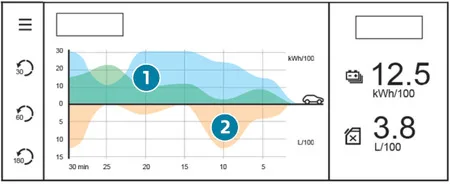
- Shows electrical energy and fuel consumption statistics.
- Gives graphs of average electricity and fuel consumption for the current journey (kWh/100 km and l/100 km).
Charging
- Lets you programme deferred charging.
- Gives detailed information on charging and managing the traction battery.
e-SAVE
- The e-SAVE function keeps some or all of the traction battery's electrical energy in reserve for later in your journey.
- Press ON to activate it and choose the electric range to keep in reserve (10 km, 20 km or the full range).
- When it's active, an indicator lamp comes on in the instrument panel and the amount of energy reserved is shown in miles or km.
- Switch to Electric mode to use the energy reserve.
- If the distance you request is more than is available, the petrol engine starts recharging the traction battery, which can lead to higher fuel consumption.
i-Toggles
Peugeot 308 i-Toggles Features and Use
The 308's i-Toggles are an additional touchscreen that comes with PEUGEOT i-Connect Advanced. They give you quick, personalised access to applications and presets. Here are the key features:
Personalised Shortcuts
i-Toggles let you create personalised shortcuts to the applications or settings you use most.
By default, they take you to the main applications such as Media, Air Conditioning, Navigation, Telephone and Mirror Screen.
Shortcut Options
Shortcuts can be changed to other options, such as a radio preset, a temperature preset, a preselected destination, a preselected contact or a preselected smartphone.
Personalisation and Settings
You'll find more about personalisation and i-Toggles in the audio and telematics section of the handbook.
Exposure to Sunlight
If the car is left in the sun for a long time, the touchscreen can overheat. If this happens, wait for the system to cool down.
Additional Remote Functions (Plug-in Hybrid)
The 308 plug-in hybrid offers a number of remote functions through the MYPEUGEOT APP, making the car easier and more convenient to use. Here's how they work:
App Functions
Traction battery charge management: manage deferred charging settings.
Thermal preconditioning management: set the cabin temperature in advance for extra comfort.
Charge status and range: see the car's charge status and how far it can go in electric mode.
Setup Procedure
Download the MYPEUGEOT APP from your smartphone's app store.
Create an account and enter your car's Vehicle Identification Number (VIN), found on the vehicle registration document.
Network Coverage and Communication
To use these remote functions, the car must be within mobile network coverage.
Outside coverage, for example in an underground car park, the app will show a message saying it can't connect to the car.
These remote functions are especially handy for urban driving and when you need to charge frequently.
Make It a Habit
- Reset a trip counter at each fill-up or charge to track your real-world economy
- Customise the instrument panel display so the information you use most is always visible
- Keep the touchscreen and its software up to date. Our Peugeot software update guide explains how
- Don't adjust settings while you're driving: pull over first, or ask a passenger to do it
To understand what the panel is telling you, read What Do Peugeot 308 Warning Lights Mean? and our red and orange warning-light guides. For the full picture of the car, see our Peugeot 308 review.
Don't forget to follow us on Instagram for more Peugeot guides!
Related guides
The 308's digital instrument panel shows a lot more than speed and revs. Alongside the warning lamps there are status readouts for servicing, oil level, engine temperature, AdBlue (on diesels) and, on plug-in hybrids...
"Hybrid" covers a lot of ground in the current Peugeot 308 range. On a hatchback or SW badged Hybrid 136, it means a self-charging petrol car with a small electric boost. On a Plug-in Hybrid 180, 195 or 225, it means a...
Choosing an engine for a Peugeot 308 used to be simple: petrol or diesel. The third-generation car (2021 onwards) offers a much wider spread, from a three-cylinder turbo petrol to a 48-volt hybrid, two generations of...