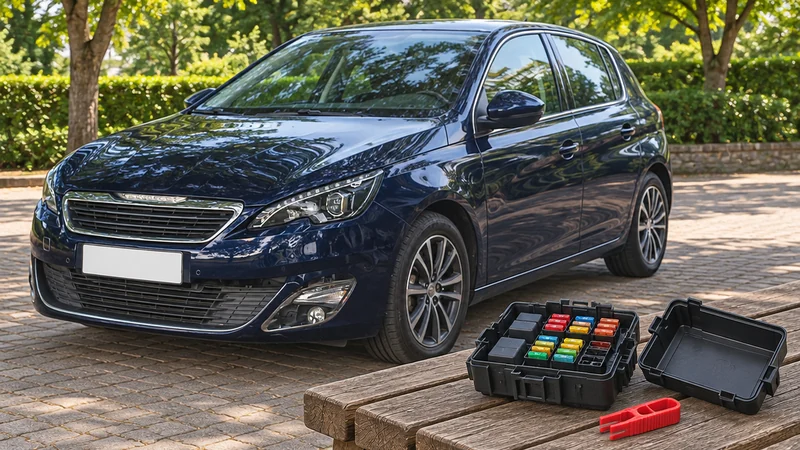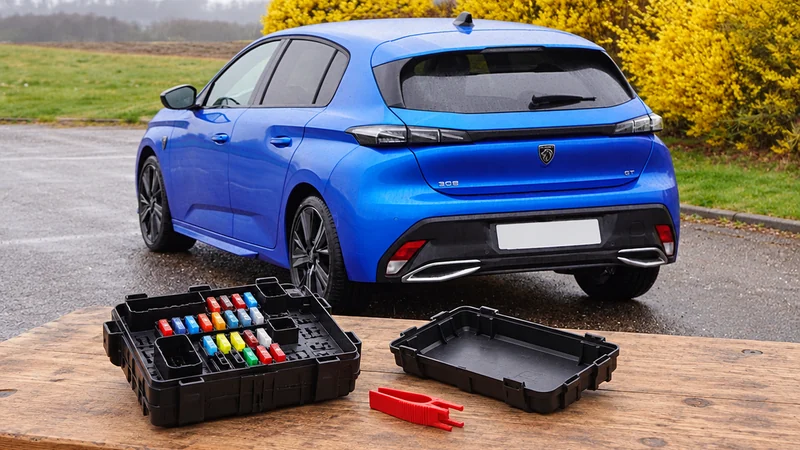
Peugeot 308 Fuse Box and Fuses (2021-2025)
Hello and welcome. In this article we look at the fuses on the Peugeot 308 III (2021-2025). We will cover who should change a fuse and what to know before fitting extra electrical equipment or accesso
How to connect Apple CarPlay, Android Auto and Bluetooth on the Peugeot 308 2021-2025, plus voice commands, Wi-Fi updates, radio and USB music file rules.
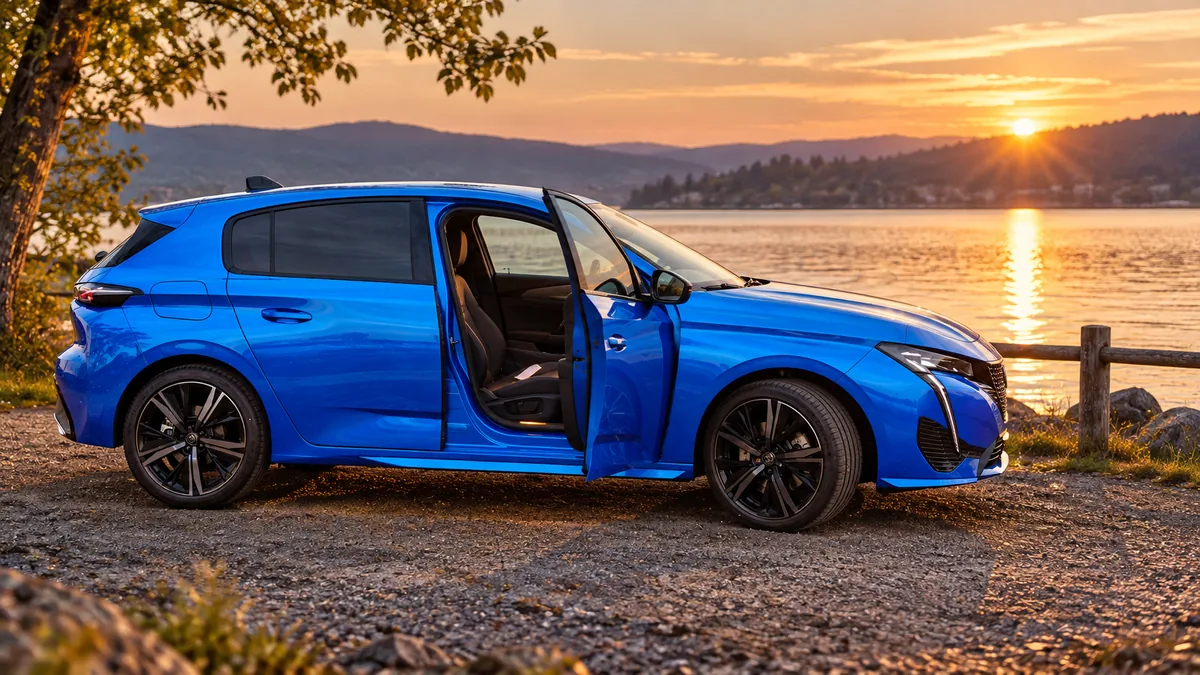
On the Peugeot 308 III built from 2021 to 2025, a phone connects to the PEUGEOT i-Connect or i-Connect Advanced system in three ways: Bluetooth, Apple CarPlay or Android Auto. CarPlay and Android Auto each work by cable or wirelessly.
For calls and music, pair the phone by Bluetooth through Settings, Connectivity, My Devices. For Apple CarPlay or Android Auto, plug it into the USB socket that supports Mirror Screen, or set up the wireless connection from the same My Devices menu. Do all of this with the car stationary and the ignition on.
The system restricts these operations to a stationary car for safety:
Some phones need to be unlocked, and you may have to allow contacts and recent calls to sync. Bluetooth gives the car access to the phone's contents and lets it stream audio through “Media”. It also activates the Phone app, which shows the call log, contacts and phone settings. With two phones connected, the Phone app shows the priority phone's contents, and you can change which phone has priority. Not every feature works with every handset. Peugeot's national website lists which phones are fully or partly compatible.
After that, a paired phone reconnects automatically when you start the car, once you select your user profile. Phones linked to that profile take priority. If none are linked, the last connected phones reconnect. Automatic reconnection pauses while “My Devices” is open, so the car can stay visible to a new device. The system disconnects when you switch off the ignition and open the driver's door.
Only one phone can run CarPlay or Android Auto at a time. Both systems connect either through the Mirror Screen USB socket or wirelessly. Each method needs a different setting on the phone.
Scroll the table sideways.
| Step | Apple CarPlay | Android Auto |
|---|---|---|
| Before anything else | Activate Siri on the iPhone | Install the Android Auto app from the Play Store; a compatible phone is required |
| For a cable connection | Phone Settings, Bluetooth, tap the “i” next to the car and deactivate CarPlay | Deactivate the wireless function in the Android Auto app's Settings menu |
| First cable connection | Starts a few seconds after plugging in; you may need to unlock the phone | Starts a few seconds after plugging in; complete the validation on the phone with the car stationary |
| For a wireless connection | Phone Settings, Bluetooth, tap the “i” next to the car and activate CarPlay | Activate the wireless function in the Android Auto app's Settings menu |
Later wireless connections happen automatically, provided Bluetooth is switched on on the phone. To use the phone's own voice assistant, press and hold the voice control button on the steering wheel.
A cable charges the phone while it is connected. It also avoids dropouts, especially when passing through toll booths. Use the phone's original USB cable, preferably a short one.
For any phone you have connected wirelessly, you can set whether it uses Bluetooth or wireless Mirror Screen each time the system starts, provided the phone supports both. Go to Settings, Connectivity, My Devices. Press the management button next to the phone, choose the connection type and confirm with “APPLY”.
While CarPlay or Android Auto is running, the car sends your phone its location and some vehicle data. This includes the brand, left-hand or right-hand drive, day or night mode and the car's physical speed.
Check the following:
Some phones ask to reconnect immediately after being deleted. Refuse that request.
If the screen shows Energy economy mode, the system is about to go into standby.
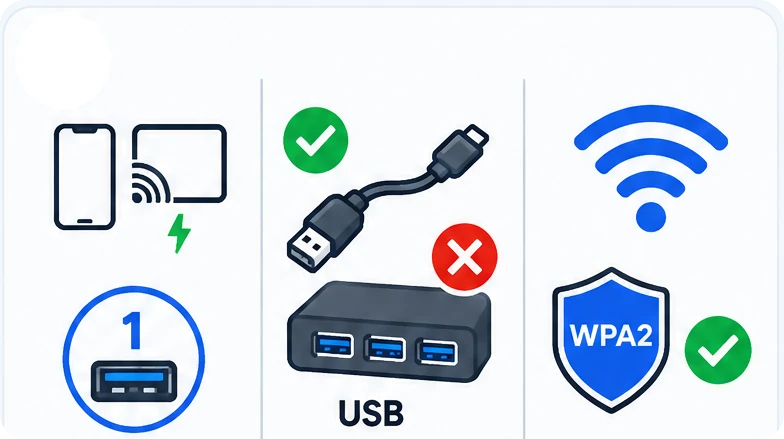
The car's Wi-Fi is mainly there for system updates. To connect it to a network:
The system only accepts networks with WPA2 encryption, which is the standard level for a home router. Once a network has been used, the car rejoins it automatically whenever Wi-Fi is on and the network is in range. The car cannot connect over Wi-Fi to a phone that is already linked by wireless Mirror Screen. In that case, use the Mirror Screen USB socket instead.
Connecting regularly to a secure Wi-Fi network keeps the installed maps updated automatically. On some versions, maps also update over the mobile network. This depends on the country of sale, the equipment level and your connected services subscription. If you use your phone's Wi-Fi or mobile data for this and go over your data plan, your operator will add the extra charges to your bill.
Open the “Navigation” application. From there you can:
The main menu includes:
Navigation is a driving aid and does not replace your own judgement, so check every guidance instruction. A useful shortcut: pressing the touch screen with three or more fingers opens the applications wall from any page.
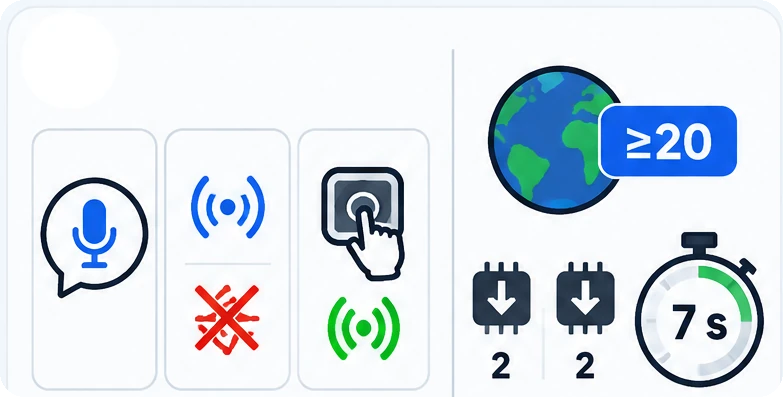
On equipped cars, you can open voice recognition in three ways:
After using either button, wait for the beep before you speak. There is no beep when you start with “OK Peugeot”. The wake word is switched on or off under Settings, Voice Assistant, Listen for OK Peugeot.
Voice commands work on any screen unless something with higher priority is running. That means reversing, an emergency or assistance call, a phone call, or another smartphone voice assistant that is already active.
Scroll the table sideways.
| Area | Example commands |
|---|---|
| Climate | “raise the fan speed”, “Turn on air conditioning”, “i'm too hot” |
| Radio and media | “I want to listen to michael jackson”, “switch to radio”, “tune to 88.5” |
| Navigation | “navigate home”, “search for public parking nearby” |
| Phone | “Call Matthew's mobile” |
| Weather | “do i need a raincoat”, “how is the weather tonight” |
A few points on how commands behave:
At least 20 languages are available over the mobile network. They include English UK and US, French, German, Spanish, Italian, Dutch, Polish, Turkish, Arabic, Chinese and Japanese. Where there is no mobile coverage, the system falls back on two on-board languages stored in the car. If your language is not one of them, the screen offers to download it the first time the car loses signal. You can also download it in advance over Wi-Fi, with the ignition on and the engine off. Downloading a new language removes the on-board language you use least.
The “Data Usage” option in the same settings menu lets the supplier reuse your data to improve voice recognition. It does not include your location or voice recordings. Only text transcriptions are kept, and they are pseudonymised.
Everything audio runs through the “Media” application. Press the source button there to switch between radio, USB, Bluetooth and Mirror Screen.
Two settings on the “Settings” tab are worth switching on. A lit slider confirms each one is active.
Hills, buildings, tunnels and underground car parks can block reception, including in RDS mode. This is normal and does not mean the system is faulty. A USB charger plugged into the 12 V socket can also cause interference if it is not approved by Peugeot.
Sound, radio and volume settings are in two places: the “Settings” tab inside Media, or the “Audio and Radio” tab in the Settings app.
The USB sockets accept USB memory sticks and Apple devices. Any adapter cable has to be bought separately. Memory sticks must be formatted to FAT32.
Scroll the table sideways.
| What | Supported |
|---|---|
| File types | .wma, .aac, .flac, .ogg, .mp3 |
| Not readable | Any other type, such as .mp4 |
| Bit rate | 32 Kbps to 320 Kbps, VBR supported |
| Sampling rate | 32, 44 and 48 KHz |
| WMA files | WMA 9 standard only |
| File names | Under 20 characters, no special characters |
To play tracks, open “Media”, choose the device if more than one is connected, and browse with “Playlist” or “Library”. A short press skips to the previous or next track. A long press fast-forwards or rewinds. Repeat, random play and mute are on the same screen.
Streaming works from a phone connected by Bluetooth, by USB or through Mirror Screen. Once streaming, the phone counts as a media source. If the sound is too quiet, set the phone's volume high first, then adjust the car's volume. If nothing plays, start playback on the phone itself. You can control playback from the phone or from the car's touch buttons.
Yes. Activate CarPlay from the “i” next to the car in the iPhone's Bluetooth menu, then choose Apple CarPlay as the wireless mode under Settings, Connectivity, My Devices. After that, it connects automatically whenever Bluetooth is on on the phone.
Wireless connections can drop out, especially at toll booths. A cable in the Mirror Screen USB socket avoids that. For wireless use, keep the phone away from other Wi-Fi networks it joins automatically.
It plays .wma, .aac, .flac, .ogg and .mp3 files at 32 to 320 Kbps, from sticks formatted to FAT32. Video formats such as .mp4 are not read. Short file names without special characters avoid display problems.
Yes, using one of the two on-board languages stored in the car. If your language is not one of them, download it in advance over Wi-Fi with the ignition on and the engine off. The download replaces the on-board language you use least.
If a phone refuses to connect, delete every saved connection on both the phone and the car, then start again.
Don't forget to follow us on Instagram for more Peugeot guides!
This is an independent guide, not an official Peugeot publication. If in doubt, contact a PEUGEOT dealer or a qualified workshop before carrying out any work.
Related guides: Peugeot 308 model guides; Peugeot 308 III fuse box; Peugeot 308 III 12 V battery and jump-starting; Peugeot 308 III fuel and refuelling.
Cover adapted from a photograph by A.BourgeoisP — Wikimedia Commons, CC BY-SA 4.0 (AI edited).
Hello and welcome. In this article we look at the fuses on the Peugeot 308 III (2021-2025). We will cover who should change a fuse and what to know before fitting extra electrical equipment or accesso
Hello and welcome. In this article we look at the fuseboxes and fuses on the Peugeot 308 II (2015-present). We will cover where the fuseboxes are, how a fuse is changed and which functions each fuse p
Hello and welcome. In this article we look at bulb replacement on the Peugeot 308 III (2021-2025). We will cover which lamps are LED, where the front and rear lamps sit, the rear foglamp and reversing