Peugeot 308 Fuse Box and Fuses (2021-2025)
Hello and welcome. In this article we look at the fuses on the Peugeot 308 III (2021-2025). We will cover who should change a fuse and what to know before fitting extra electrical equipment or accesso
How to use the PEUGEOT Connect Radio in your Peugeot 308 II: radio, DAB, USB and Bluetooth media, CarPlay, Android Auto, MirrorLink and phone pairing.
Hello and welcome. In this post, we'll look at the audio and connectivity features of the Peugeot 308 II. We cover the PEUGEOT Connect Radio: photos and messages, FM, AM and DAB radio, USB and Bluetooth media, smartphone apps and hands-free calls.
Scroll the table sideways.
| Section | In short |
|---|---|
| PEUGEOT Connect Radio | Safety rules and basics of the multimedia system |
| Applications | View photos from USB and manage text messages |
| Radio | Tune, preset stations, RDS, TA and sound settings |
| DAB (Digital Audio Broadcasting) radio | Select DAB and use FM-DAB Follow-up |
| Media | USB, AUX, Bluetooth streaming, Apple players and file formats |
| Telephone | Smartphone apps, Bluetooth pairing and hands-free calls |
The PEUGEOT Connect Radio combines the multimedia audio system, applications and a Bluetooth® telephone. The functions and settings vary according to your car's version and configuration.
For safety, and because these tasks need your full attention, only do the following with the car stationary and the ignition on:
The system is protected so that it will only work in your car. When the system is about to enter Energy Economy Mode, the Energy Economy Mode message appears on the screen.
The Applications menu lets you view photos from a USB memory stick and manage your text messages.
The system can read folders and image files in these formats:
To view photos:
To manage messages in the "SMS" tab:
To manage quick messages:
You can tune the radio in three ways. Start by pressing Radio Media to display the main page, then use one of these methods:
Electrical equipment not approved by the Brand, such as a USB charger plugged into the 12 V socket, can affect radio reception. Hills, buildings, tunnels and basement car parks can also block reception, including in RDS mode. This is normal for radio waves and does not mean the audio system is faulty.
To change the waveband:
To preset a station, select a station or frequency and make a short press on the star outline. If the star is already solid, the station is already preset. Or, after selecting the station, press "Preset" and make a long press on one of the buttons.
RDS, when activated, keeps you on the same station by automatically retuning to alternative frequencies. Radio Text shows information sent by the station about itself or the song playing. TA (Traffic Announcement) gives priority to traffic alerts: the current media is interrupted while the message plays, then resumes at the end. TA needs good reception of a station that broadcasts this type of message.
To switch RDS, Radio Text or TA on or off:
RDS station tracking may not work everywhere, because many stations do not cover 100 % of the country. This is why you can lose a station during a journey.
To change the audio settings:
The balance setting, or spatialisation with the Arkamys© system, uses audio processing to adjust the sound to the number of passengers. Arkamys Sound Staging© optimises the sound distribution in the cabin.
Digital radio gives higher quality sound. The "multiplexes/ensembles" offer a choice of stations listed in alphabetical order.
To select DAB:
"DAB" does not cover 100 % of the country. When the digital signal is poor, "FM-DAB Follow-up" keeps you on the same station by switching to the matching "FM" analogue station, if there is one.
When the system switches to "FM", there may be a time offset of a few seconds and sometimes a change in volume. Once the digital signal is good again, the system changes back to "DAB" automatically. If the station is not available on "FM", or "FM-DAB Follow-up" is switched off, the sound will cut out while the digital signal is too weak.
You can play music from a USB device, the auxiliary socket, Bluetooth streaming or an Apple® player.
Insert a USB memory stick into the USB port, or connect a USB device with a suitable cable (not supplied). To protect the system, do not use a USB hub. At the first connection, the system builds playlists in temporary memory, which can take from a few seconds to several minutes. To shorten the wait, reduce the number of non-music files and folders. Playlists are updated each time you switch off the ignition or connect a USB memory stick. The system memorises them, so they load faster next time if nothing has changed.
Depending on equipment, you can connect a portable device, such as an MP3 player, to the auxiliary jack socket with an audio cable (not supplied). This source only works if "Auxiliary input" is selected in the audio settings. Set the volume on the portable device first (to a high level), then adjust the audio system volume. You control playback from the portable device.
To select the source:
Bluetooth streaming lets you listen to audio from your smartphone. The Bluetooth profile must be activated. Set the volume on the phone first (to a high level), then adjust the system volume. If play does not start automatically, start playback from the phone. You can control it from the phone or with the system's touch buttons. Once connected in streaming mode, the smartphone counts as a media source.
Connect an Apple® player to the USB socket with a suitable cable (not supplied). Play starts automatically and you control it from the audio system. The classifications are those of the connected device (artists/albums/genres/playlists/audio books/podcasts), or you can use a library structure. The default is by artist. To change it, go back to the first menu level, select the classification you want (playlists for example) and confirm to work down to your track. The audio system software may not be compatible with your Apple® player's generation.
The system supports USB mass storage devices, BlackBerry® devices and Apple® players through the USB ports, managed with the audio system controls. The adapter cable is not supplied. Devices that are not recognised must be connected to the auxiliary socket with a jack cable (not supplied), or via Bluetooth streaming if compatible. Using the original USB cable for your device is recommended.
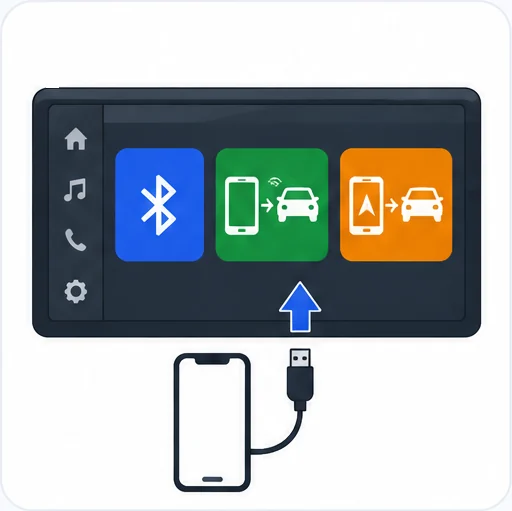
Smartphone connection lets you show CarPlay®, MirrorLinkTM or Android Auto apps on the car's screen. To find out which USB sockets are compatible, check the markings on the sockets or contact a PEUGEOT dealer or a qualified workshop. For CarPlay®, activate the CarPlay® function on the phone beforehand. Your smartphone must be unlocked for it to communicate with the system. Keep the phone's operating system up to date, along with the date and time on both the phone and the system.
MirrorLinkTM depends on country and version, and needs a compatible smartphone and compatible applications. If your phone is not connected by Bluetooth® (enabling Bluetooth® on the phone is recommended when connecting):
If your phone is already connected by Bluetooth®:
A page then shows the compatible apps already on your phone. Audio sources stay available through the touch buttons in the upper bar, and the dedicated buttons give access to the system menus at any time. There may be a pause before apps are available, depending on network quality.
For CarPlay®, connect a USB cable (the phone charges while connected) and press Telephone on the system to display the CarPlay® interface. If the phone is already connected by Bluetooth®, connect the USB cable, press "Telephone", press the "PHONE" button, then press "CarPlay". Connecting the USB cable switches off the system's Bluetooth® mode. If you disconnect the cable and switch the ignition off and on again, the system does not return to Radio Media mode by itself, so change the source manually. You can reach CarPlay® navigation at any time with the system's Navigation button.
For Android Auto, first download the Android Auto app on your phone. It needs a compatible smartphone and applications. If your phone is not connected by Bluetooth® (enabling Bluetooth® on the phone is recommended when connecting):
If your phone is already connected by Bluetooth®:
Audio sources stay available through the touch buttons in the upper bar, and the dedicated buttons give access to the system menus at any time. There may be a pause before apps are available, depending on network quality.
To pair a Bluetooth® telephone, activate Bluetooth on the phone and set it to "Visible to all". The services available depend on the network, the SIM card and the compatibility of your devices, so check your phone's user guide and your service provider. Whichever way you pair, make sure the code is the same on the system and the phone. If pairing fails, switch Bluetooth off and on again on the phone.
The system then offers 3 profiles: "Telephone" (hands-free kit, telephone only), "Streaming" (wireless playing of audio files on the phone) and "Mobile internet data". Select one or more and press "OK". Depending on the phone, you may be asked to accept the transfer of contacts and messages. All three profiles may connect by default, and whether just one can connect depends on the phone. Compatible profiles are HFP, OPP, PBAP, A2DP, AVRCP, MAP and PAN.
When you return to the car, the last connected phone is recognised and pairs automatically within about 30 seconds of switching on the ignition (Bluetooth activated). To change its profile:
To manage paired phones, open the same "Bluetooth connection" list and press a phone's name to disconnect it, then press again to connect it. To delete a phone, press the basket at the top right of the screen, then press the basket next to the phone.
An incoming call is announced by a ring and a pop-up on the screen. Make a short press on the steering mounted PHONE button to accept it. Make a long press on the same button, or press "End call", to reject it.
Using the phone while driving is not recommended. Park the car, and make calls using the steering mounted controls.
You can always call directly from the phone, but park the car first.
Download the Android Auto app on your phone. If the phone is not connected by Bluetooth®, connect a USB cable, press "Telephone" and then "Android Auto"; if it is already connected by Bluetooth®, press "Telephone", then "PHONE", then "Android Auto".
Connecting the USB cable for CarPlay® deactivates the system's Bluetooth® mode. After unplugging and switching the ignition off and on, change the source back manually.
It plays ".wav", ".wma", ".aac", ".ogg" and ".mp3" files at bit rates between 32 Kbps and 320 Kbps, from USB sticks in FAT32 format. Other file types, such as ".mp4", cannot be read.
DAB does not cover 100 % of the country, and the sound cuts out when the digital signal is too weak. Switch on "FM-DAB Follow-up" so the system moves to the matching FM station, if there is one.
The PEUGEOT Connect Radio does a lot, from DAB and USB music to hands-free calls and smartphone apps. Remember to pair and set things up with the car stationary, and keep this guide handy for the next time you need a quick reminder.
For more on your 308, see our guides to the red warning lights, orange warning lights and green and blue warning lights.
Don't forget to follow us on Instagram for more Peugeot guides!
This is an independent guide, not an official Peugeot publication. If in doubt, contact a PEUGEOT dealer or a qualified workshop before carrying out any work.
Related guides: Peugeot 308 model guides.
Cover adapted from a photograph by Tokumeigakarinoaoshima — Wikimedia Commons, CC BY-SA 4.0 (AI edited).
Hello and welcome. In this article we look at the fuses on the Peugeot 308 III (2021-2025). We will cover who should change a fuse and what to know before fitting extra electrical equipment or accesso
Hello and welcome. In this article we look at the fuseboxes and fuses on the Peugeot 308 II (2015-present). We will cover where the fuseboxes are, how a fuse is changed and which functions each fuse p
Hello and welcome. In this article we look at bulb replacement on the Peugeot 308 III (2021-2025). We will cover which lamps are LED, where the front and rear lamps sit, the rear foglamp and reversing